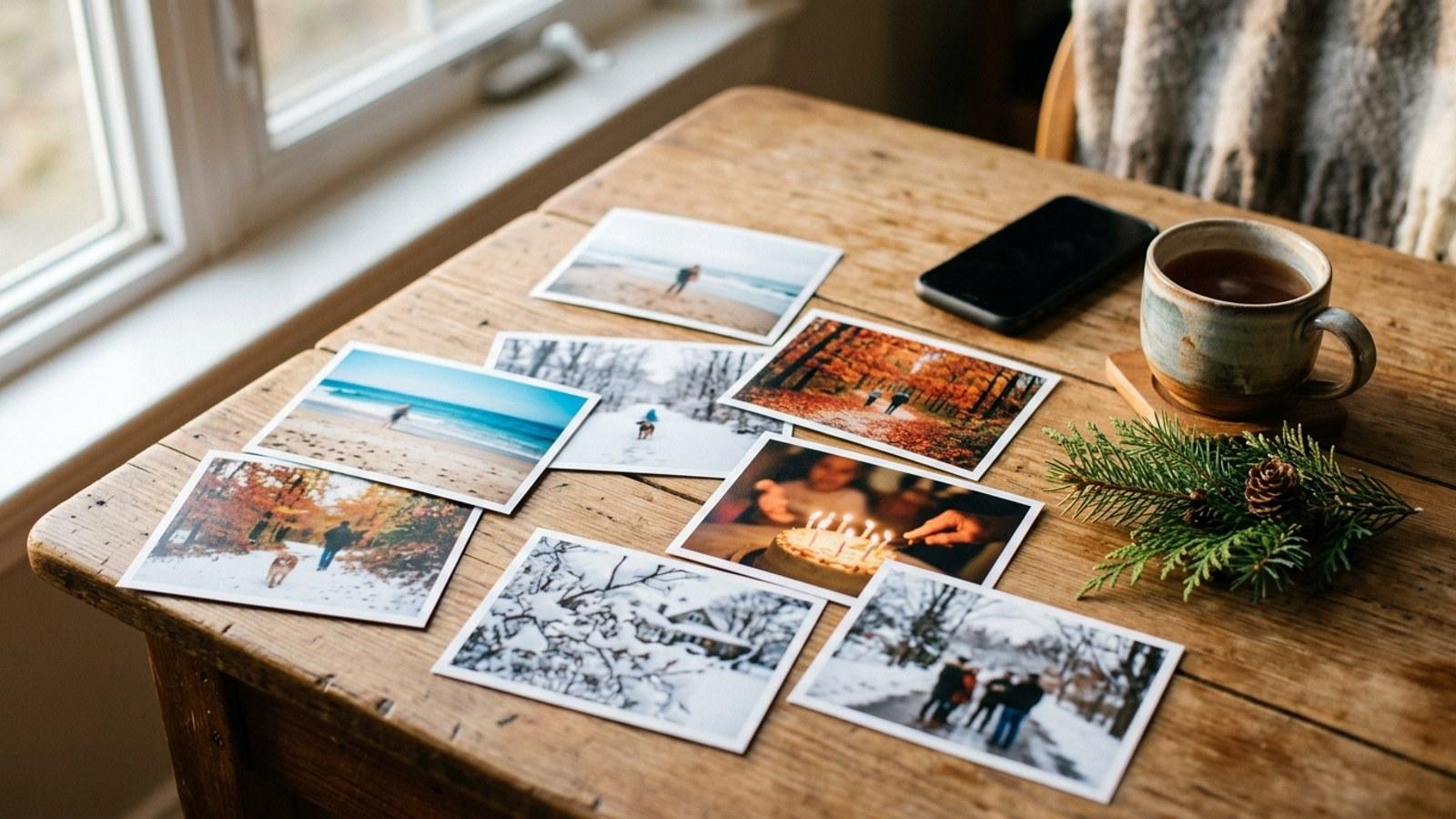
How to Make a Year-in-Review Video From Your Photos
By the end of the year most phones hold a few thousand photos, and almost none of them get looked at twice. As December arrives, a year-in-review video is a good way to change that: a short film of the year in order, from January to the last week of December, to watch on New Year’s Eve or send to family as a greeting.
The method is simple. Pick one photo from each month for a film of about a minute, or two from each month for about two minutes. Put them in date order, add music and choose a shape that suits where people will watch it. The rest of this guide is about making those choices well.
Step 1: Decide whose year it is
A family year, a couple’s year and a personal year call for different photos. A family film should have every person in it a few times, including the one who usually takes the photos. A couple’s year leans on trips, dinners and ordinary weekends. A personal year can be anything: places, work, the view from the window. Deciding first keeps you from scrolling through everything twice. If it was a baby’s first year, a baby growth video with one photo a month is the better format.
Step 2: Find the photos month by month
Searching by date is the fastest way to work through a year. In both Apple Photos and Google Photos you can type a month and year into the search, such as “March” followed by the year, and see only the photos from that month. Go through one month at a time and mark a few candidates as favorites.
- Check your partner’s phone and any shared albums. Half the family photos are usually on the other phone.
- Screenshots and photos of receipts show up in date searches too. Skip them.
- Holiday and birthday months will have hundreds of photos. Quiet months may have five. Both are fine.
Step 3: Choose one or two photos per month
Twelve photos, one a month, make a film of about a minute. That suits a group chat or a social post. Twenty-four, two a month, make about two minutes, which suits a family evening on the TV. Beyond that, people start to drift.
Choose photos with a clear subject and good light over technically busy ones. Mix faces with places, so the film doesn’t become a row of identical selfies. If a month has nothing worth using, take two from the month before or after. Nobody counts. A year full of travel works well as a year of trips, one photo from each.
Step 4: Pick the shape before you edit
Vertical (9:16) is right for Instagram or Facebook Stories and for anything watched on a phone. Wide (16:9) is right for a TV on New Year’s Eve. Square is a safe choice for a group chat, where people watch on all sorts of screens. Every photo gets cropped to the shape, so choose it first and check that nothing important falls off the edges.
Step 5: Make the film
A free video editor can turn the photos into a slideshow: place them on a timeline for two to four seconds each and crossfade between them. Apple Photos and Google Photos can also build a short highlight video automatically, which is quick but chooses the photos for you.
SunLap makes a film rather than a slideshow: it generates a 5-second AI transition between each pair of photos, so one month appears to turn into the next, then adds music and an opening title such as the year. Twelve photos make about a minute, and every photo after the first adds about five seconds. The transitions are generated by AI, not recordings, so preview each one and redo any that look unnatural.
Step 6: Add music
A song from the year is the obvious choice for a private film. If you plan to post it publicly, use a track you are allowed to use, such as the platform’s own music library, since copyrighted songs can be muted on public posts. SunLap has a built-in library, or you can upload your own file and trim it so the music ends with the last photo.
Step 7: Show it or send it
- On New Year’s Eve, play it on the TV an hour or so before midnight, while everyone is still paying attention.
- As a New Year greeting, send a link to family who weren’t there. It plays in a browser without an account.
- For Stories, export the vertical version and post it on January 1st.
How long does this take?
Finding and choosing the photos is the slow part: an hour or two for one photo a month, longer for two. Building a slideshow by hand adds another hour or so. If you start in the week between Christmas and New Year, there is time for both.
Common questions
How many photos do you need for a year-in-review video?
Twelve, one a month, for a film of about a minute. Twenty-four, two a month, for about two minutes. More than that makes the film long enough that people stop watching.
Can I post a year-in-review video to Instagram Stories?
Yes, in the vertical (9:16) shape. If you use a commercial song, post it with the platform’s own music instead, since copyrighted audio may be muted.
What if some months have no good photos?
Use two photos from a busier month nearby. The film is about the year as a whole, and nobody will notice that June had none.
Can I make one for free?
Yes. A free video editor makes a slideshow, and Apple Photos and Google Photos can build a highlight video automatically. SunLap’s first film is free too, but it is two photos and one transition - enough to see the effect, not a whole year.
Twelve months, twelve photos
Pick one from each month, upload them in order and see the first transition for free.
Create my free film →